Self-hosted · end-to-end encrypted · no inbound firewall rules

Remote support where the server in the middle can't watch.

Secure Desk is self-hosted remote support and device management for Windows. The technician's console and the supported machine agree on their own keys, so the relay you run between them pairs the session and forwards ciphertext it cannot read.

Free forever for one technician and 3 devices · no card required
AES-256-GCM
Per-direction session keys
6 digits
Read-aloud check against a MITM
0
Inbound ports to open
SYSTEM
Shell that needs no desktop
What you get

One console, from a helpdesk call to a managed fleet

Attended sessions, unattended devices, a privileged shell, file transfer and voice — with the identity, roles and audit trail to justify all of it to a security reviewer.

End-to-end encrypted sessions

After pairing, console and device run an ephemeral ECDH P-256 exchange and derive AES-256-GCM keys — one per direction — through HKDF-SHA256. The relay forwards ciphertext it holds no key for.

A 6-digit code that catches a MITM

Both ends derive the same short authentication string from the agreed key material. Read it aloud to the user and a relay that tampered with the exchange is exposed immediately.

Attended support from a single link

Create a one-time session in the portal and send the join link. The user runs a portable executable in their own session — nothing installed, no admin rights, access ends when they close it.

Unattended devices, enrolled once

The installed Windows service runs as LocalSystem from boot with its own enrolled device token, grouped per customer in the portal. Connect across logon, lock and fast-user-switch.

Backstage: a SYSTEM shell, no desktop

Open cmd or PowerShell as SYSTEM on a machine with nobody logged in, without taking over anyone's screen. It rides a derived session id, so the user still shares just the one code.

Sign-in and lock screens

GDI capture returns the Windows sign-in desktop as solid black, so the unattended worker probes DXGI duplication on the live input desktop and switches to it when it succeeds. UAC and Ctrl-Alt-Del remain out of reach.

Elevation with credentials that stay local

Escalate an attended session by entering that machine's own admin account. The credentials are used once on that box, never persisted, never logged, and never reach the portal — and the console refuses to send them unless the session is end-to-end encrypted.

File transfer, verified

Push files either direction in 64 KB chunks; the receiver verifies a SHA-256 of the whole file before acknowledging it. Multi-monitor switching and two-way clipboard are in the same console.

Talk the user through it

Start a voice call inside the session — 16 kHz mono PCM over the same encrypted channel — with optional webcam video from the technician. No second tool, no conference bridge.

Roles, TOTP and SSO

Technicians sign in to your portal with a password plus enforced TOTP, or through Microsoft Entra / Google. Roles are admin, operator and viewer; auto-provisioned SSO logins land in read-only viewer.

White-label the end-user experience

Your company name, logo, colour and support line lead what the supported user sees; the platform mark stays subtle. Bring your own code-signing certificate and the relay signs client builds on the fly.

Updates without a truck roll

The installed service checks for a newer published build, downloads it and swaps itself out as SYSTEM — triggered from the portal or on its own six-hourly schedule. A failed update leaves the running version untouched.

How a session works

Outbound-only, from both directions

No VPN, no port forwarding, no exception for your firewall team to sign off. Both ends connect out to the relay you control, and the relay never gets a key.

1

Create a session, share the link

A technician signs in to your portal and creates a one-time support session — a label, an expiry, single-use or reusable. Send the join link by email, or have the user open your portal's front page and type the code.

2

Both ends dial out to your relay

The user runs the portable client; the console opens in a browser. Each side connects outbound over WSS and presents the session id plus its token, so neither needs a public IP or an inbound firewall rule. The relay pairs them and nothing else.

3

Keys, then control

The two endpoints run an ECDH exchange through the relay and derive their own AES-256-GCM keys. Compare the 6-digit code with the user, then view the screen, take mouse and keyboard, open a SYSTEM shell, move files, or start a voice call.

The actual product

What your technicians and your users see

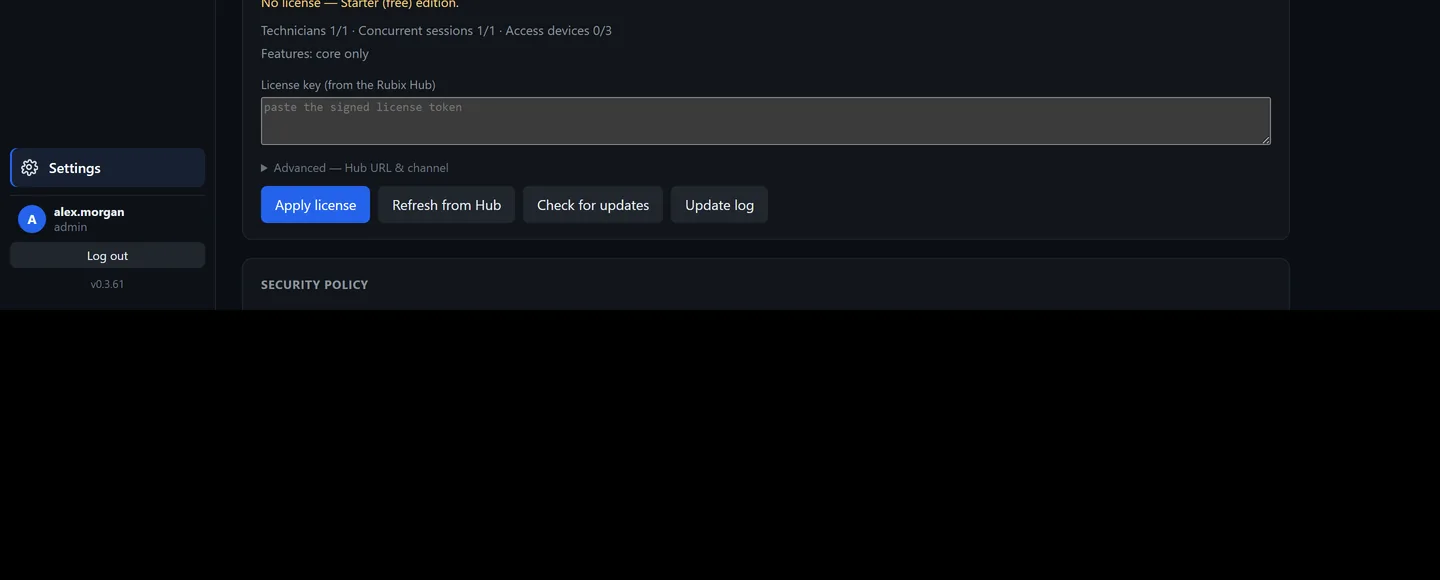
Screenshots from a running deployment, not mockups. The portal below is an unlicensed install, which is why it reports the free Starter caps.

The Secure Desk portal's Support view: a form to create a one-time support session with a label, expiry and one-time or reusable setting, above a list of published sessions showing status, join link, and Copy, Email and Open console buttons.
Create a one-time session, then send the join link by email or read the code to the user. Every session shows live status and can be revoked.
The Secure Desk join page as a supported user sees it, showing the session name, a waiting status, three numbered steps for running the downloaded connector, and buttons to download the connector again or report that it did not start.
What the person you're helping sees. No account, no install — they run a connector that ends when they close it.
The Secure Desk console's tool panel, with buttons for Screenshot, Record, Send clipboard, Get clipboard and Call, a chat box for messaging the user, and file transfer controls for sending a file to the client or requesting one from it.
In-session tools: clipboard both directions, voice call, chat, recording, and file transfer with the transfer verified by SHA-256.
Security model

Assume the middle is hostile

Backstage is a SYSTEM shell and Elevate carries admin credentials. Capabilities that powerful only make sense if the transport holds up even when the relay itself is compromised — so the endpoints, not the server, own the keys.

The relay is outside the confidentiality boundary

TLS protects each hop, but a relay that terminates TLS could read plaintext — so the endpoints encrypt above it. Compromise the relay host and you get pairing metadata and ciphertext, not screens, keystrokes or files.

Three credential planes that never mix

Portal identity decides who may run a session. A portal-issued token authorizes a socket. The session then acts in whatever context the client already runs in. We never join, trust, or authenticate against the supported machine's domain.

Admin credentials stay on the target machine

The in-session Elevate prompt takes that host's own admin account, uses it once for a linked-token launch, and reports the privilege level actually obtained. Nothing is persisted, logged, or sent to the portal.

Built for a PCI-scoped deployment

TLS 1.2+ with AEAD-only ciphers, a relay designed to sit outside the cardholder data environment, per-session identity, idle session reaping, and connect/pair/transfer events to ship to your SIEM. Compliance is still yours to validate with your assessor.

The full trust model, including what the product deliberately does not do, is in the security documentation.

Deployment

You run the relay. That is the point.

One Linux host with a DNS name serves the technician portal, the join page, the browser console and the WebSocket rendezvous. No secrets in config files: the first start prints a one-time setup token and funnels everything to a setup wizard.

Debian / Ubuntu installer

The recommended bare-VM path. Idempotent, so upgrades are the same command.

  • One command on a Debian or Ubuntu VM
  • Provisions Node.js, PostgreSQL and certbot
  • Let's Encrypt issued and renewed for you
  • Re-run the same command to upgrade in place
  • Database, secrets and config survive upgrades

Docker Compose + Caddy

For teams that would rather ship a container than manage a VM.

  • docker compose up -d --build
  • Caddy obtains and renews the certificate
  • Certs and config persist in named volumes
  • Reproducible and self-healing
  • Point DATABASE_URL at your own PostgreSQL
# download and extract the release, then:
sudo bash install.sh
# the setup token is printed to the service log:
sudo journalctl -u rubix-relay -e | grep -i 'setup token'
# then finish in the browser: https://support.example.com/setup

Production uses PostgreSQL — the Debian installer provisions it. Step-by-step instructions, including TLS and the Windows clients, are in the install guide.

Windows on the endpoints

The supported machine always runs the native Windows client — a web page cannot inject operating-system mouse and keyboard input. The technician's console runs in a browser or as a native Windows app, whichever the technician prefers.

Who it is for

Teams that have to justify their remote access

Fleets of AI agent desktops

An AI agent running on its own Windows desktop is an unattended machine with nobody at the keyboard — exactly what the installed service and the backstage SYSTEM shell are for. Enrol each desktop once, watch what the agent is actually doing, and take the keyboard when it gets stuck.

MSPs and IT helpdesks

Devices are grouped per customer, so a technician sees one client's fleet at a time. White-label branding and your own code-signing certificate mean the end user sees your company, not ours.

Internal IT

Reach employee laptops, meeting rooms and servers with no VPN and no inbound firewall rule. Elevate inside the session to fix a driver or service without pulling the user off their machine.

Regulated and security-first teams

Self-hosted, end-to-end encrypted, TOTP or SSO on every technician, roles down to read-only, and a relay designed to sit outside your cardholder data environment.

Servers and headless machines

Backstage opens a SYSTEM shell on a box with nobody logged in and no desktop to disturb — the right tool for a service that will not start or a disk that is filling up at 2am.

Emerging use case

Run a fleet of AI agent desktops? Same problem, solved.

An AI agent driving its own Windows desktop is an unattended machine that occasionally needs a human — and the usual answer, RDP through a jump host, means opening inbound access to the exact machines you least want exposed.

Enrol each desktop once

The installed service runs as LocalSystem from boot with its own enrolled device token, so an agent VM is reachable across logon, lock and reboot — whether or not a human has ever signed into it.

See what the agent is actually doing

Attach to the live desktop and watch the agent work. Multi-monitor machines let you pick the screen, so a wide agent workspace does not have to be squeezed into one view.

Intervene without stealing the keyboard

Backstage opens a SYSTEM shell with no desktop attached, so you can read logs, restart a stuck service or fix a dependency while the agent keeps running on screen, undisturbed.

Get artifacts off the box

Pull traces, screenshots and output files back over the same encrypted channel, verified by SHA-256 on arrival — no file share to open, no bucket to grant the desktop access to.

No inbound rules for the agent subnet

Both ends dial out over WSS to your own relay. An agent fleet can sit in a locked-down subnet with no public IP and no inbound exception, which is usually the first thing security asks about.

An audit trail per desktop

Roles decide who may connect at all, and the portal records who opened which session and when. Sessions can be recorded from the console, so "what did we change on that agent?" has an answer.

To be clear about the boundary: Secure Desk does not run or orchestrate your agents — it is how you reach, watch and repair the desktops they run on. Device caps by plan are 3, 100 and 1,000. Tell us about your fleet if you need more than that.

Pricing

One annual licence for the whole deployment

Not per seat, not per session, not per minute connected. Every plan includes end-to-end encryption, attended support, backstage and file transfer — the paid tiers raise the technician and device caps and add SSO, branding and code signing.

Starter

Attended remote support for a solo technician — encrypted end to end, free forever.

Free
One technician · 3 devices · forever
  • Attended remote support
  • End-to-end encryption
  • Secure-desktop (UAC/lock) capture
  • File transfer & remote Explorer
  • Up to 3 unattended devices
  • Community support
Get started free

Team

For small IT teams and MSPs — unattended fleets, elevation and SSO.

$180 / yr
≈ $15/mo · billed annually
Up to 10 technicians
  • Everything in Starter
  • Unlimited attended sessions
  • Up to 100 unattended devices
  • On-demand SYSTEM elevation
  • SSO — Microsoft Entra & Google
  • Silent auto-update
  • Email support
Buy Team

Prices in USD, billed annually. Your licence is verified offline against a key baked into the build, so the relay keeps working if it cannot reach us — and reverts to Starter, never to nothing, if a licence expires. Compare all plans on the Rubix Hub.

Stand up your own support relay this afternoon

One Linux VM, one command, one setup wizard. Starter is free forever for one technician and three unattended devices — no card, and nothing to uninstall from a cloud tenant if you change your mind.

Questions first? sales@secure-desk.io