 Secure Desk
Your Devices. Ready When You Need Them.
Access enrolled computers even when no one is sitting in front of them. Handle maintenance, troubleshoot issues, and support devices on your schedule.
Set it up once. Reach it any time.
Install the service
Run the Secure Desk installer on the Windows PC with admin rights.
Enroll the device
It checks in with your portal and appears in your inventory.
Connect whenever
Open the device from the portal — even when nobody is signed in.
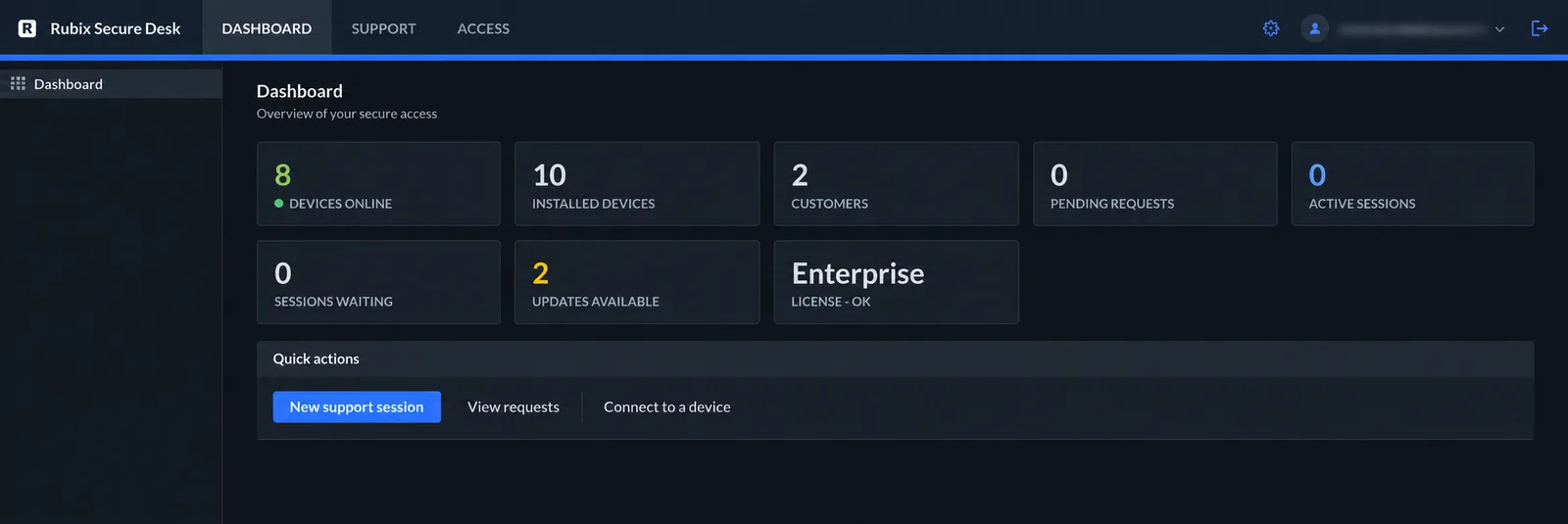
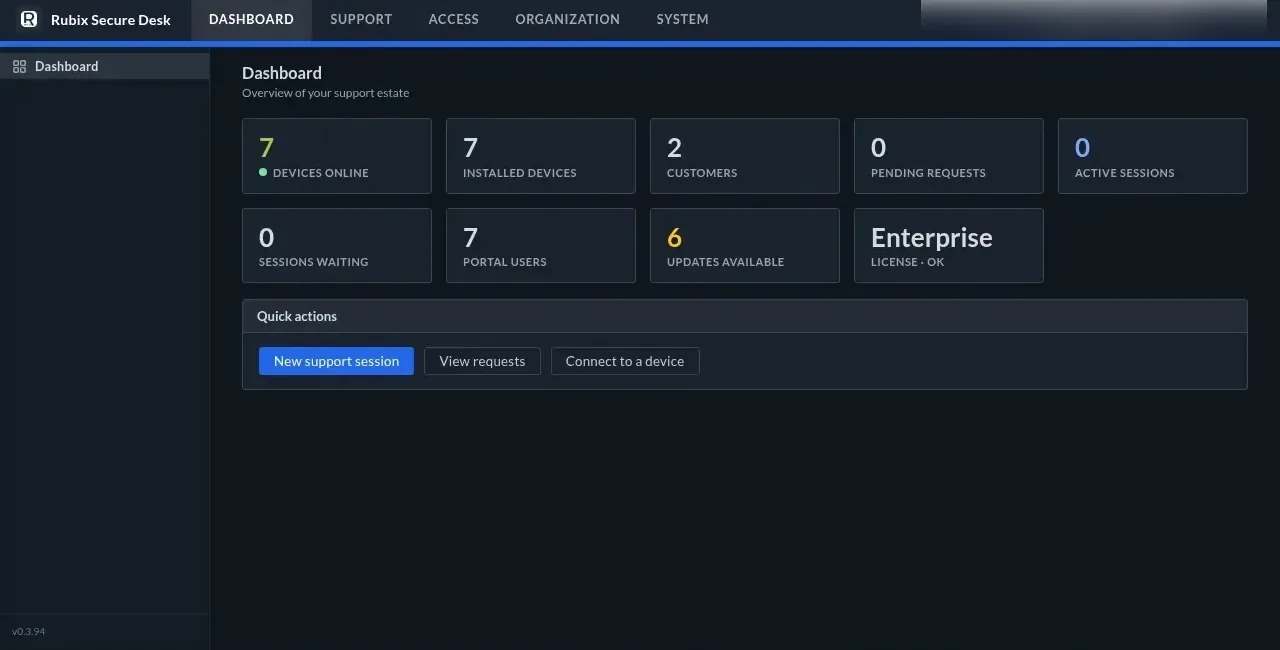
Your whole fleet, in one dashboard.
See what's online, what needs updating and who's waiting for help — then jump straight into a session.
- Devices online and installed, at a glance
- Group devices by customer
- Push client updates from the portal
- Quick actions: new session, view requests, connect
Persistent access that just works.
Persistent access
The service runs from boot and stays connected across sign-in, lock and fast user switching.
Sign-in & lock screens
Connect before anyone signs in, so you can help at the very start of the day.
Multiple locations
Every device dials out to your relay — no VPN, no port forwarding, no public IP on the PC.
Remote troubleshooting
See the desktop, use the keyboard and mouse, transfer files and talk to the user.
Self-updating clients
Enrolled PCs pull new builds from your own relay every six hours.
Per-customer groups
Keep devices organized by customer so technicians work within one client at a time.
Fix it behind the scenes.
Backstage opens a command prompt or PowerShell running as SYSTEM on an enrolled PC — without taking over, or even disturbing, the user's screen.
- Restart a stuck service or clear a full disk
- Works when nobody is signed in
- Only on the installed service, never the portable connector
Backstage is the most powerful tool in Secure Desk. Treat access to it like handing out a remote administrator prompt, and limit who can open sessions on enrolled devices. Security details
Illustrative commands. Backstage gives you a real cmd or PowerShell session as SYSTEM.
Admin rights, without storing passwords.
When a task needs more rights, enter that computer's own administrator account in the session. It's used once on that machine — never saved, logged or sent to your portal.
- Only sent over an end-to-end encrypted session
- Reports the privilege level actually obtained
- Available on Team and Business
Select any part of the diagram to see what it does.
Unattended access questions
What does enrolling a device involve?
Install the Secure Desk service on the Windows computer from an elevated PowerShell prompt. It enrolls with your portal, gets its own device token, and appears in your device inventory.
Can I connect before anyone signs in?
Yes. The installed service runs from boot and Secure Desk captures the Windows sign-in and lock screens. UAC prompts and Ctrl+Alt+Del run on a protected desktop that isn't captured.
Is the user asked to approve each connection?
No. An installed service is designed for unattended use, so there's no per-session consent prompt. If you need approval on managed machines, build that into your policy — or use attended support instead.
How many devices can I enroll?
Starter includes 3 enrolled Windows devices, Team 100 and Business 1,000.
How are devices kept up to date?
Installed clients check your relay for a newer version every six hours and update themselves. You can also push an update from the portal. A failed update leaves the current version running.
Put your devices within reach.
Enroll up to 3 Windows devices free on Starter.