 Secure Desk
Powerful Remote Access. Security That Stays in Your Control.
Your remote sessions should stay private. Secure Desk uses encryption and self-hosted infrastructure options to help protect sensitive information while keeping your team connected.
See how a session stays private.
Every part has one job — and none of them can read your session except the two ends.
Select any part of the diagram to see what it does.
Only the two ends can read the session.
Your browser and the Windows device agree on their own encryption keys. Everything — screen, keystrokes, files — is encrypted before it leaves either side.
- End-to-end encryption on every plan, including Starter
- Matching 6-digit code on both ends to confirm the connection
- TLS on every network hop too
Your server. Your network. Your rules.
You run the portal and relay on a Linux host you control. There's no shared vendor cloud in the path — and the relay itself is treated as something that could be compromised.
- One Linux host, PostgreSQL and a DNS name
- Windows PCs dial out — no inbound rules on the machines you reach
- Licenses verify offline, so an outage isn't a lockout
You run the relay
Debian/Ubuntu installer or Docker Compose.
No inbound rules
Endpoints connect out over WSS.
No vendor keys
We never hold your session keys.
Offline licensing
Signed licenses verify locally.
Decide who can connect — and how.
Every technician signs in with two-factor authentication or your SSO provider. Admin credentials for the machines you support never touch your portal.
- Enforced TOTP, or SSO via Microsoft Entra / Google (Team+)
- Admin, operator and viewer roles (Business)
- Elevation uses the target's own admin account, once
- One-time links with expiry, revocable any time
Two-factor by default
Local accounts must enroll TOTP.
Roles
Admin, operator, viewer.
Local admin, once
Never stored or logged.
Expiring links
One-time or reusable.
Know what's happening.
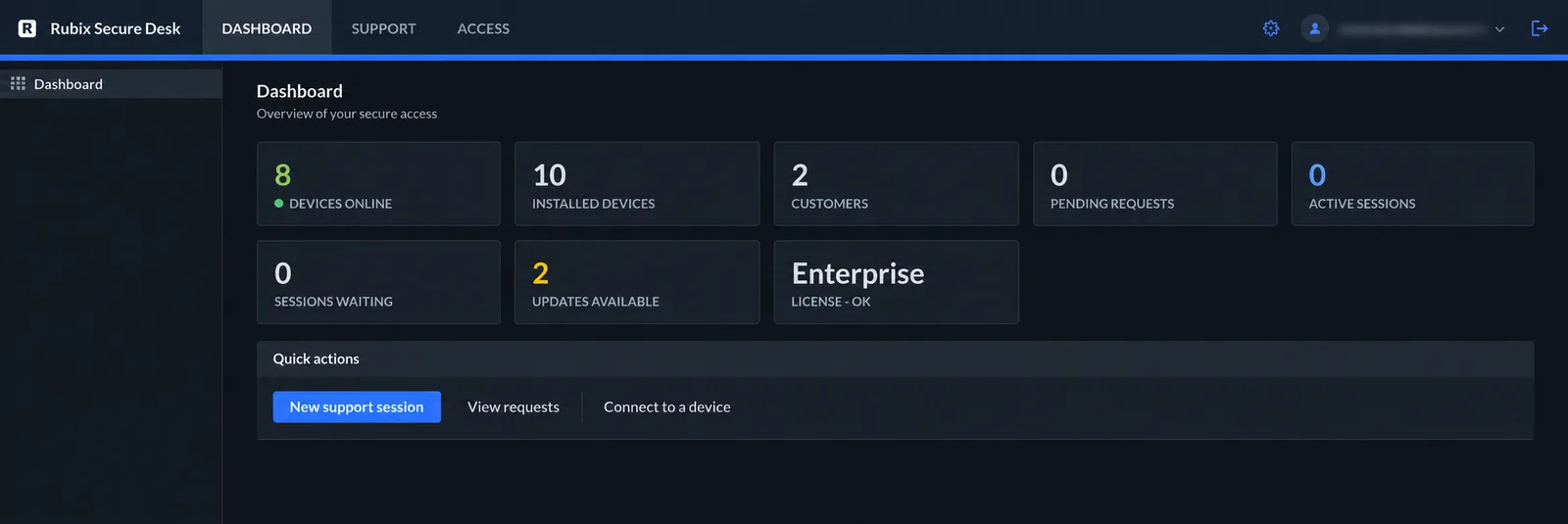
See live devices and sessions in your dashboard, and review administrative and session events in the portal audit log.
- Live dashboard of devices, requests and active sessions
- Audit log of the last 200 portal events (Business)
- Connect, pair and file-transfer events to ship to your SIEM
- Attended users see a banner while their screen is controlled
The audit log covers portal administrative and session events — not command-level backstage activity.
Technical details
Written so a reviewer can check the claims rather than take them on trust.
Encryption architecture
After pairing, the browser console and the Windows device each generate an ephemeral ECDH P-256 key pair and exchange public keys through the relay. The shared secret goes through HKDF-SHA256, salted with the session id, to derive AES-256-GCM keys — one per direction. Screen frames, input, shell bytes and file chunks are encrypted before they leave either endpoint.
Both ends derive the same 6-digit short authentication string (SAS) from the agreed key material. Read it aloud to the user: a relay that tampered with the key exchange is exposed immediately. Compare it before using backstage or elevation.
TLS protects each hop as well, with TLS 1.2 as a floor and an AEAD-only cipher list when the relay terminates TLS itself.
Authentication
Secure Desk keeps three identity planes separate:
- Portal account — password plus enforced TOTP (on by default, recovery codes stored only as hashes), or SSO through Microsoft Entra or Google (Team and Business). Decides who may run sessions.
- Portal-issued token — a one-time session token, an enrolled device token or a short-lived console grant. Decides which socket may join which session.
- Target context — whatever the client already runs as (the signed-in user, or LocalSystem for the installed service). More rights require that machine's own admin account, entered in-session.
Compromising the portal does not grant OS access to any client, and Secure Desk never joins, trusts or authenticates against a customer's Windows domain. Passwords are scrypt-hashed and sessions use HttpOnly, SameSite cookies.
Role-based permissions
On Business, portal users have one of three roles: admin, operator or viewer. New users auto-provisioned through domain-allowlisted SSO land in the read-only viewer role rather than getting access by default.
Be aware: roles do not isolate backstage per technician. Anyone who can open a session on an installed device can open its SYSTEM shell, and backstage commands are not logged. There are no per-technician customer access lists.
Relay design
The relay validates each session id and its secret token against the portal's registry using constant-time comparisons, honours expiry, and consumes one-time links when their session ends. It then pairs two sockets and forwards opaque payloads — it is handed no key material at any point.
Because the relay sits outside the confidentiality boundary, compromising the relay host yields pairing metadata and ciphertext — not screens, keystrokes or files. Both endpoints connect out over WSS; the relay host needs ports 80 and 443.
Security configuration
- Leave TLS certificate validation on in the client. If a certificate is self-signed, fix the certificate — don't disable the check.
- Prefer the portable client for everyday help. Reserve the installed service, and especially backstage, for cases that truly need unattended, pre-login or SYSTEM access.
- Keep join tokens out of logs and tickets.
- Rate-limit and monitor the relay: per-IP connection limits, maximum sessions and maximum message size.
- Change every default. The installer generates its own secrets; anything set by hand during evaluation shouldn't survive into production.
- Ship connect, pair and file-transfer events to your own SIEM if you need longer retention than the portal's last-200-event audit log (Business).
Known limitations
- The Windows secure desktop (UAC prompts and Ctrl+Alt+Del) is not captured. Sign-in and lock screens are.
- There is no per-session consent prompt on an enrolled device — the installed service is unattended by design.
- Endpoints are Windows only.
- Secure Desk is not a compliance certificate. It can support a compliant deployment, but validating that is your work and your assessor's.
About compliance. Secure Desk is designed with security safeguards in mind and can help support HIPAA- or PCI-scoped deployments, but it is not “HIPAA certified” or “PCI certified,” and no software is compliant on its own. Compliance depends on your environment and processes, validated by your assessor. Where Rubix acts as a business associate, a Business Associate Agreement is available when applicable — contact sales@rubixtechnology.com.
Running a security review? Send your questionnaire to our team and we'll answer it against the documentation.
Security you can explain to your auditor.
Try it on your own infrastructure with the free Starter plan.